
File & Folder Exclusions: Windows Defender
Windows Defender is our recommended anti-virus, alongside malwarebytes anti-malware. Sometimes, however these give false positives, so you must make an exclusion to your Turf Battles game folder. This guide will show you how to make a folder exclusion.
Windows Defender is our recommended anti-virus (and it comes pre-installed on all Windows platforms). However, it (and other Anti Viruses) gives false positives, so you must make an exclusion to your EonicGames folder. This guide will show you how to make a folder exclusion for our games.
| Step # | Instructions | Related Images |
| 1 | To begin adding an exclusion for the EonicGames folder, open the "Virus & Threat Protection" window by pressing the Windows key on your keyboard and typing "Virus". Locate and click the "Virus & threat proection" option that appears. | 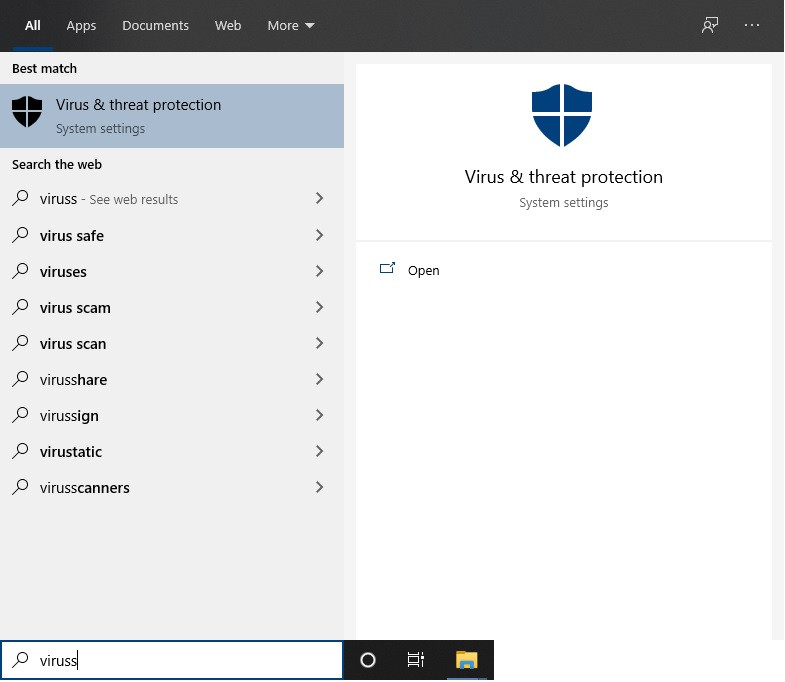 |
| 2 | Once the window opens, press the "Manage settings" text under the "Virus & threat protection settings" section. | 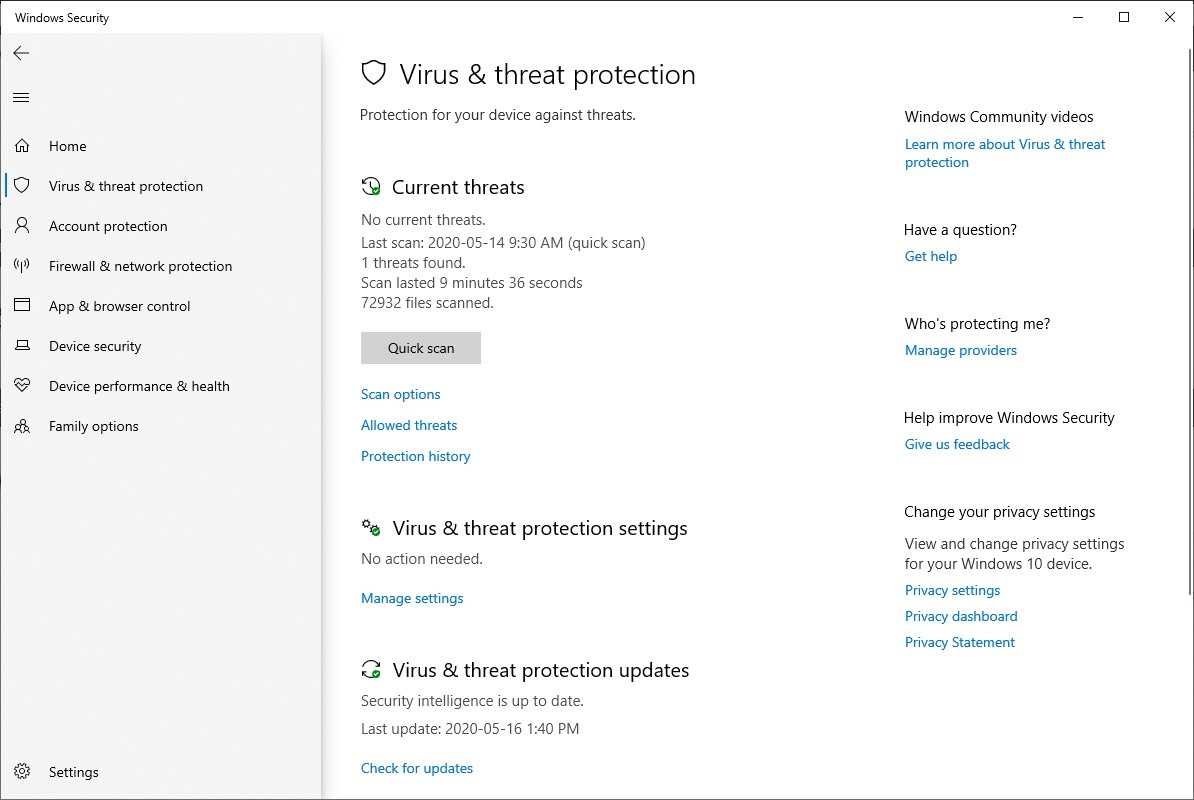 |
| 3 | Scroll down to the "Exclusions" section, and press the "Add or remove exclusions" text. | 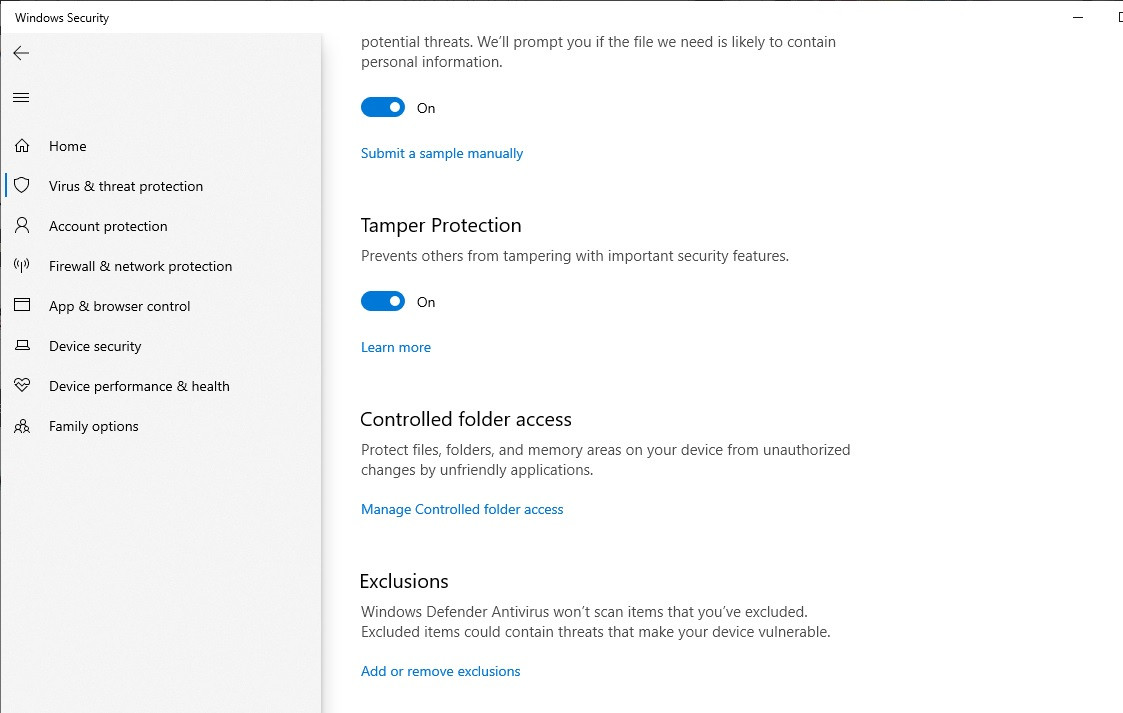 |
| 4 | Click the "Add an exclusion" button that pops up on the next menu. Once you click this button, it will give you a drop down menu that lists: File, Folder, Process or File Type. Please Choose "Folder". | 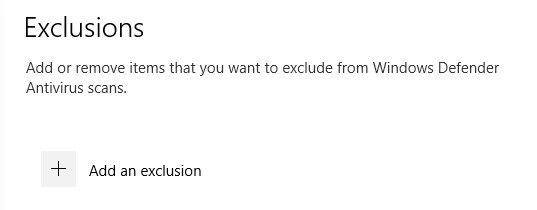 |
| 5 | Navigate to your EonicGames folder installation (typically C:/ProgramData/EonicGames), and click select folder. If an administration prompt pops up, please press "Yes". | 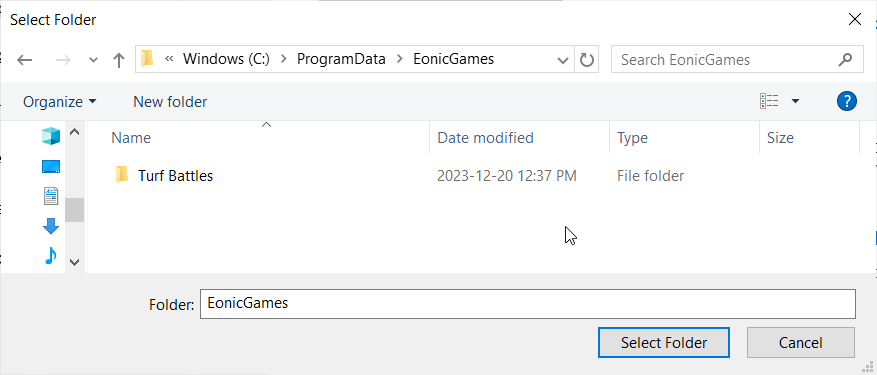 |
| 6 | Your game is now ready to play, Windows Defender should no longer block or delete required game files! |